
Table Modes
Sidebar
The sidebar on the left allows quick access to common search terms. On Anki 2.1.45+, it also provides a searchbar, facilities to edit tags and decks, and a choice of two different tools, which are discussed in the following sections. You can switch tools using the toolbar at the top of the sidebar or the shortcuts Alt+1/2.Search Tool

-): for example, to show all cards in a current deck that
do not have a certain tag. Alt/Option can be combined with
either Ctrl or Shift (e.g. clicking with Ctrl+Alt
will result in adding a new search term that is negated).
On Anki 2.1.39+, you can also hold down both Ctrl and
Shift together when clicking a search term to replace all occurrences of the
same kind of search with the new one. Let’s say you had previously typed in a
complicated search expression like deck:Swahili (is:due or tag:important) and now want
to perform the same search for your Urdu deck. You can hold down
Ctrl+Shift while clicking the Urdu deck in the sidebar to obtain
the following search expression: deck:Urdu (is:due or tag:important).
Selection Tool
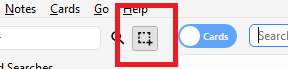
Math, Calculus, and Algebra.
Click on the Calculus tag, then Ctrl-click on the Algebra tag. Now both
tags are selected, click and drag any of the two onto the Math tag to make them
both children of this tag. Behind the scenes, Anki has renamed the two tags to
Math::Calculus and Math::Algebra respectively and updated your notes accordingly.
Another use case for selecting multiple items is searching: If you right-click on
a selection of items, you can choose Search > All/Any Selected. This
can be combined with keyboard modifiers as described in Search Tool
to append the resulting search to the current search.
Saved Searches
If you regularly search for the same thing, you can save the current search by right-clicking the topmost item in the sidebar, choosing Save Current Search and typing in a name. You can also drag and drop any sidebar item onto this area to add an equivalent saved search, effectively pinning it at the top.Editing Items
You can delete or rename tags, decks, and saved searches directly from the sidebar, from the right-click menu, or by using a shortcut key (Del and F2 on Windows). Deletion even works for multiple items at once (see Selection Tool).Finding Items
To find a certain item in the sidebar tree, type part of its name into the searchbar at the top.Search Box
Above the card list is a search box. You can type in various things there to search for cards. For information on the search syntax, see Searching.Card/Note Table
The table’s rows represent cards or notes that match the current search. When you click on a row, the corresponding note will be shown in the bottom section.Rows
If you drag the mouse or hold Ctrl or Command to select multiple rows, the editor will be temporarily hidden. Various operations (such as changing the deck) can operate on multiple cards or notes at once, independent of the active mode. Therefore in Cards mode, a note is considered to be selected if any of its cards is selected, and in Notes mode, a card is considered to be selected if its note is selected. Other operations (like showing card information) only operate on a single card or note. This is called the current card or note, which is usually the one that was last selected or clicked. In Cards Mode, again, the current note is the note of the current card and in Notes mode, the current card is the first card of the current note. The background colour will change depending on the card and note. In Cards mode, the first match will be used:- if the card is flagged, use the flag colour,
- if the card is suspended, yellow,
- if the card’s note is marked, purple.
For more information about marked notes and suspended cards, see Editing and More.
Columns
The columns are configurable: right click on one (or Ctrl-click on a Mac) to choose which columns you’d like to see. You can drag columns to reorder them. Clicking on a column will sort by that column; click again to reverse the sort order. Note that you cannot sort by the Question and Answer columns. All columns are available for both Cards and Notes mode but sometimes with slightly different names and data. The following table lists the behaviours for both modes.Editing Area
The bottom right area displays the note of the currently selected row. For more information about cards and notes, see Getting Started. For more information on formatting buttons, see Editing. You can see a preview of what the currently selected card would look like when reviewing by clicking the Preview button at the top of the editing area. Note that this will not display any type-the-answer fields on your cards, which makes it easier to preview the cards quickly. In Notes mode, the preview is shown for the first card of the selected note.Menus and Actions
At the top of the browser window, you find a toolbar with various menus which in turn offer various actions that can be performed in the browser.Edit
Notes
Most of the following actions operate on the selected notes. They are also available through a context menu when a selected row is right-clicked in Notes mode. In Cards mode, they can be found in a submenu of the context menu.Cards
The following actions operate on the currently selected cards. They are also available through a context menu when a selected row is rightclicked in Cards mode. In Notes mode, they can be found in a submenu of the context menu.Go
This menu exists to provide keyboard shortcuts to jump to various parts of the browser, and to go up and down the card list.Find and Replace
This dialog allows for replacing text on notes. As described above, it is available from the toolbar and the table’s context menu. The first input field is for the text that is going to be replaced, the second one for the replacement. Next, there is a dropdown menu that allows you to specify where Anki should look for text to replace: in a note’s tags (requires Anki 2.1.45+), in all fields, or just in a specific field (only fields belonging to a selected note will be listed). By default, only selected notes will be affected. If you want to lift that restriction, you can untick the “selected notes only” checkbox (requires Anki 2.1.45+). The regular expression option allows you to perform complex replacements. For example, assume there is the following text in a field: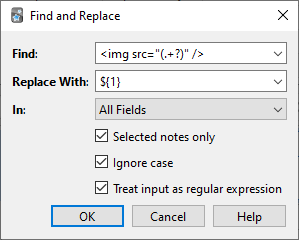
${1}
with \1.)
Then the assumed field content will change to:
- For Anki 2.1.28+, see https://docs.rs/regex/latest/regex/index.html#syntax.
- For older Anki versions, see http://docs.python.org/library/re.html.