
MathJax
MathJax is a modern, browser-based typesetting system, useful for mathematical and chemical equations. It does not require the installation of any extra software, so it is easy to use, and it is recommended for most users. MathJax is supported out of the box on Anki 2.1+, AnkiMobile, and AnkiDroid 2.9+. To try it out:- Type the following in a field:
- Select the text you just typed.
- Click the rightmost button in the editor, and choose “MathJax inline” from the menu. Anki will change the text so it reads:
-
Click the Cards… button. You’ll see a preview of how the
equation will appear when the card is reviewed.
Anki’s MathJax support expects content in TeX format. If you’re not
familiar with TeX formatting, see this cheatsheet.
Note that point 1 does not apply in Anki - Anki uses
\(and\)for inline equations, and\[and\]for display equations.
Customize MathJax
Anki’s bundled MathJax support is loaded before card content, so if you wish to customise MathJax you’ll have to do so in a specific way. An example is provided here.Anki has special logic for cloze deletions that might not work if you change the
standard delimiters for MathJax equations.
LaTeX
LaTeX is a powerful typesetting system, useful for entering mathematical formulas, chemical formulas, musical notation and so on. Anki provides some support for LaTeX, allowing you to enter LaTeX code in your notes. When you review a card, Anki will call LaTeX and display the generated image instead. LaTeX is more work to set up, and images can only be generated with the computer version of Anki - though once generated, the images can be displayed by mobile clients. Because of the extra complexity LaTeX brings, it is only recommended for users that need more features than MathJax provides.Enable LaTeX
LaTeX code can contain malicious commands that can read or write non-Anki
data on your computer. For this reason, recent Anki versions will refuse to
generate LaTeX images by default.We strongly recommend you do not enable this option if you use shared decks, or think
you will import shared decks in the future, as you are potentially giving any shared
deck author access to your computer.
Assumed Knowledge
Anki’s LaTeX support is not turn-key: it is assumed that you know how to use LaTeX already, and that you have it installed. If you have no experience with LaTeX, please consult one of the many guides available on the internet. If you are having trouble with markup, please ask on a LaTeX forum. To install LaTeX, on Windows use MiKTeX; on macOS use MacTeX, and on Linux use your distro’s package manager. Dvipng must also be installed. On Windows, go to Settings in MikTeX’s maintenance window, and make sure “Install missing packages on the fly” is set to “Always”, not to “Ask me first”. If you continue to have difficulties, one user reported that running Anki as an administrator until all the packages were fetched helped. On macOS, LaTeX has only been tested with MacTeX and BasicTeX. If you use BasicTeX, you need to install dvipng separately, with the following command:Web/Mobile
When you review a card with LaTeX on it, Anki will generate an image for that LaTeX and place the image in your collection’s media folder for future use. The web & mobile clients will display these images if they already exist, but can not generate the images on their own. To avoid having to review all your cards at least once before you can study on the other clients, Anki can generate the images in bulk for you. To generate all the images, go to Tools>Check Media. After that, syncing should upload the generated media to AnkiWeb and the other clients.Example
The most general way to input LaTeX content is to surround it with [latex][/latex] tags. There’s a shortcut button for this documented in the editor section. [latex] tags must be used inside a field - placing them in the card template will cause problems. For example, entering the following on the front of an Anki flashcard: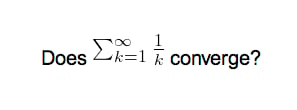
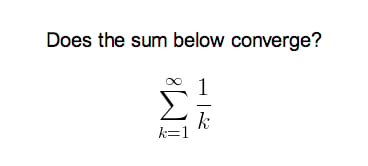
Packages
Anki allows you to customize the LaTeX preamble so you can import custom packages for chemistry, music and so on. For example, imagine you find an example file for chemtex on the internet:Template Conflicts
As of Anki 2.1.20 / AnkiMobile 2.0.56 / AnkiDroid 2.13, this workaround is no longer required, as{{field}} text inside fields no longer causes problems. If
you need to support older versions and want to keep using this syntax,
make sure you place the {{=<% %>=}} string at the very top of your front and
back template, as recent Anki versions will not recognize it anywhere but the
start.
For older versions:
It’s not uncommon for {{ and }} to pop up in LaTeX code when writing
mathematical equations. To ensure that your LaTeX equations don’t
conflict with Anki’s field replacements, it’s possible to change the
separator to something else.
For example, if you have a template:
Cloze Conflicts
Cloze deletions are terminated with}}, which can conflict with a }}
appearing in your LaTeX. To prevent LaTeX from being interpreted as a closing
cloze marker, you can put a space between any double closing braces that do not
indicate the end of the cloze, so
:: character
sequence within the Cloze-deleted text. The first card generated for the
following note text will read [type] in C++ is a type-safe union: