
Decks
Study in Anki is limited to the currently selected deck as well as any subdecks it contains. On the decks screen, your decks and subdecks will be displayed in a list. New, Learn, and Due (To Review) cards for that day will be also displayed here.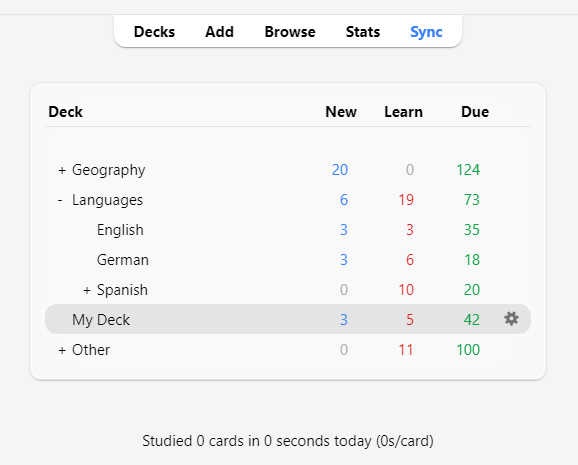
Study Overview
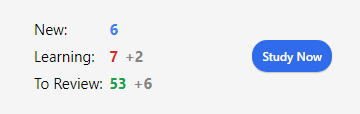
After clicking on a deck to study, you’ll see a screen that shows you how many cards are due today. This is called the “deck overview” screen: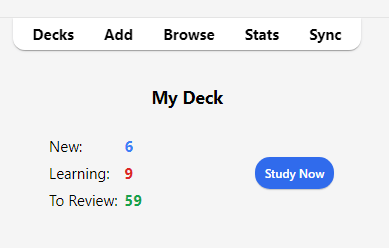
Questions
When a card is shown, only the question is shown at first. After thinking about the answer, either click the Show Answer button, or press the Space. The answer will then be shown. It’s okay if it takes you a little while to recall the answer, but as a general rule if you can’t answer within about 10 seconds, it’s probably better to move on and show the answer than keep struggling to remember.Answer Buttons
After the answer is shown, compare the answer you thought of with the answer that is shown and select any of the following buttons.- Again: Select this when your answer is incorrect or when you couldn’t recall the answer. If your answer is partially correct, you should be strict with yourself: if it counts as a fail in a real-life context outside of Anki, then it counts as a fail in Anki as well. You’ll typically use this button about 5-20% of the time. Keyboard Shortcut: 1
- Hard: Select this button when your answer is correct, but you had doubts about it or it took a long time to recall. Keyboard Shortcut: 2
- Good: Select this when your answer is correct, but it took some mental effort to recall it. When Anki is used properly, this should be the most commonly used button. You’ll typically use this button about 80-95% of the time. Keyboard Shortcut: 3, Space, Enter
- Easy: Select this if your answer is correct and it took no mental effort to recall it. Keyboard Shortcut: 4
Fuzz Factor
When you select an answer button on a review card, Anki also applies a small amount of random “fuzz” to prevent cards that were introduced at the same time and given the same ratings from sticking together and always coming up for review on the same day. Learning cards are also given up to 5 minutes of extra delay so that they don’t always appear in the same order, but answer buttons won’t reflect that. It is not possible to turn this feature off.Editing and More
You can click the Edit button in the bottom left to edit the current note. When you finish editing, you’ll be returned to study. The editing screen works very similarly to the add notes screen. At the bottom right of the study screen is a button labeled More. This button provides some other operations you can do on the current card or note:- Flag Card: Adds a colored marker to the card, or toggles it off. Flags will appear during study, and you can search for flagged cards in the Browse screen. This is useful when you want to take some action on the card at a later date, such as looking up a word when you get home. If you’re using Anki 2.1.45+, you can also rename flags from the browser.
- Bury Card / Note: Hides a card or all of the note’s cards from review until the next day. (If you want to unbury cards before then, you can click the “unbury” button on the deck overview screen.) This is useful if you cannot answer the card at the moment or you want to come back to it another time. Burying can also happen automatically for cards of the same note.
- Reset card: Moves the current card to the end of the new queue. The “Restore original position” option allows you to reset the card back to its original position when you reset it. The “Reset repetition and lapse count” option, if enabled, will set the review and failure counters for the card back to zero. It does not remove the review history that is shown at the bottom of the card info screen.
- Set Due Date: Puts cards in the review queue, and makes them due on a certain date.
- Suspend Card / Note: Hides a card or all of the note’s cards from review until they are manually unsuspended (by clicking the suspend button in the browser). This is useful if you want to avoid reviewing the note for some time, but don’t want to delete it.
- Options: Edit the options for the current deck.
- Card Info: Displays statistical information about the card.
- Previous Card Info: Displays statistical information about the previous card.
- Mark Note: Adds a “marked” tag to the current note, so it can be easily found in the browser. This is similar to flagging individual cards, but works with a tag instead, so if the note has multiple cards, all cards will appear in a search for the marked tag. Most users will want to use flags instead.
- Create Copy: Opens a duplicate of the current note in the editor, which can be slightly modified to easily obtain variations of your cards. By default, the duplicate card will be created in the same deck as the original.
- Delete Note: Deletes the note and all of its cards.
- Replay Audio: If the card has audio on the front or back, play it again.
- Pause Audio: Pauses the audio if it is playing.
- Audio -5s / +5s: Jump backwards / forward 5 seconds in the currently playing audio.
- Record Own Voice: Record from your microphone for the purposes of checking your pronunciation. This recording is temporary and will go away when you move to the next card. If you want to add audio to a card permanently, you can do that in the edit window.
- Replay Own Voice: Replay the previous recording of your voice (presumably after showing the answer).